Verified: January 2022 on Windows 10 (then-current version), local account. Prerequisite is physical access plus a Windows 10 installation stick. For accounts linked to a Microsoft cloud account, resetting online from another device is the correct path instead.
This tutorial resets the password of a local Windows 10 account by replacing the accessibility tool (utilman.exe) with the command line (cmd.exe) from the installation medium, changing the password offline, and restoring the original file afterwards. The same mechanism is a physical-access attack vector — the hardening section at the end covers how to close it.
Preparation
-
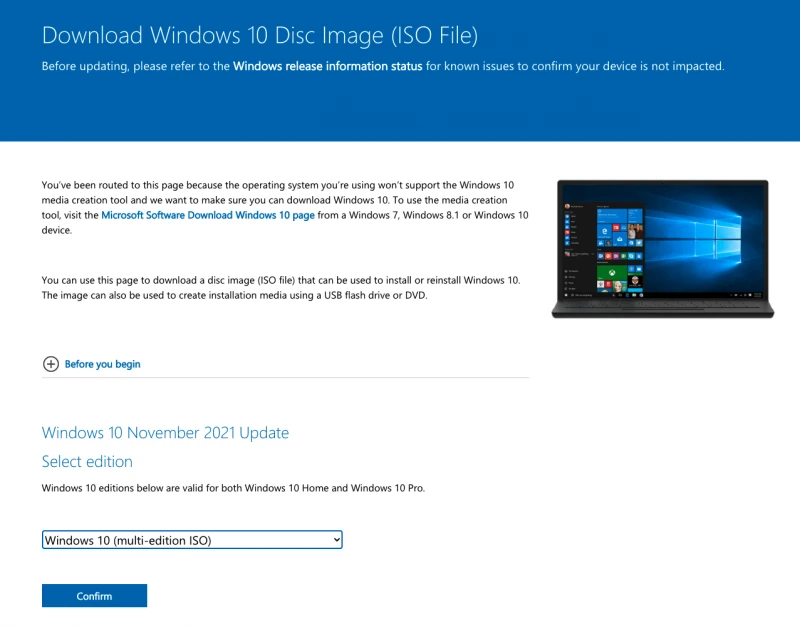
A second machine with internet access, to create a Windows 10 installation medium (USB stick) from the official ISO (sources below).
-
The affected PC, booted from that stick.
Procedure
-
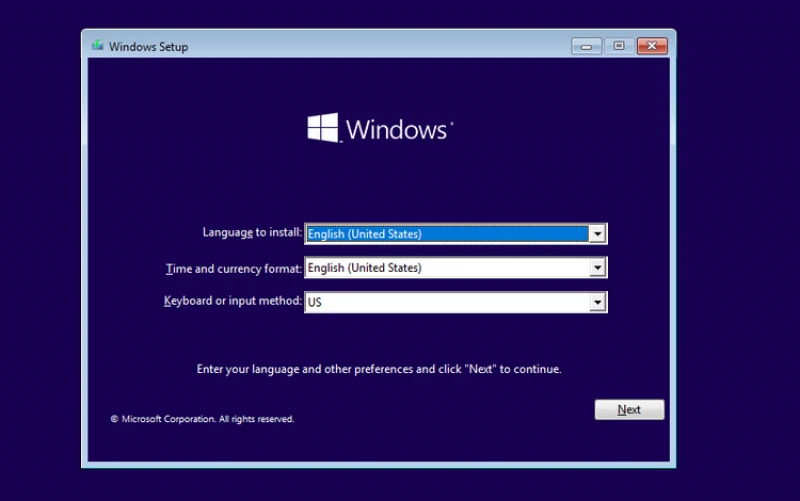
Boot the PC from the installation stick.
-
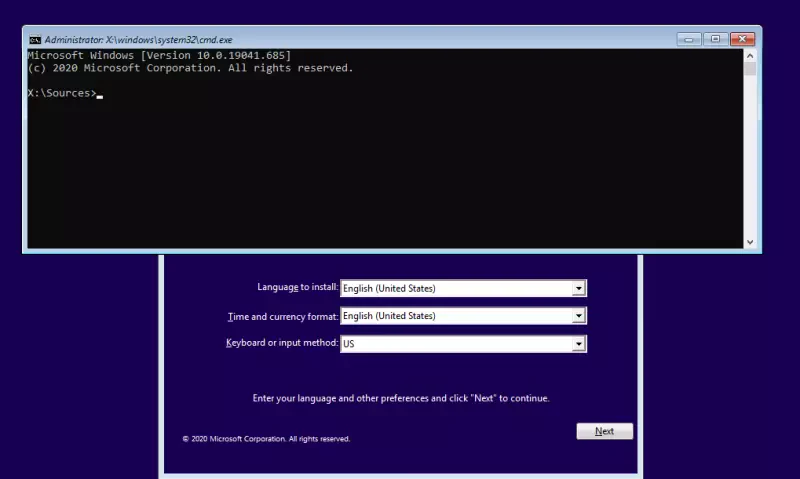
In the first dialog (language selection), press SHIFT + F10 to open a command line.
-
Switch to the partition of the installed Windows, e.g. with
C:, then into its system directory:cd Windows,cd system32. -
Back up the accessibility assistant:
cp utilman.exe utilman_old.exe. -
Replace it with the command line:
copy cmd.exe utilman.exe.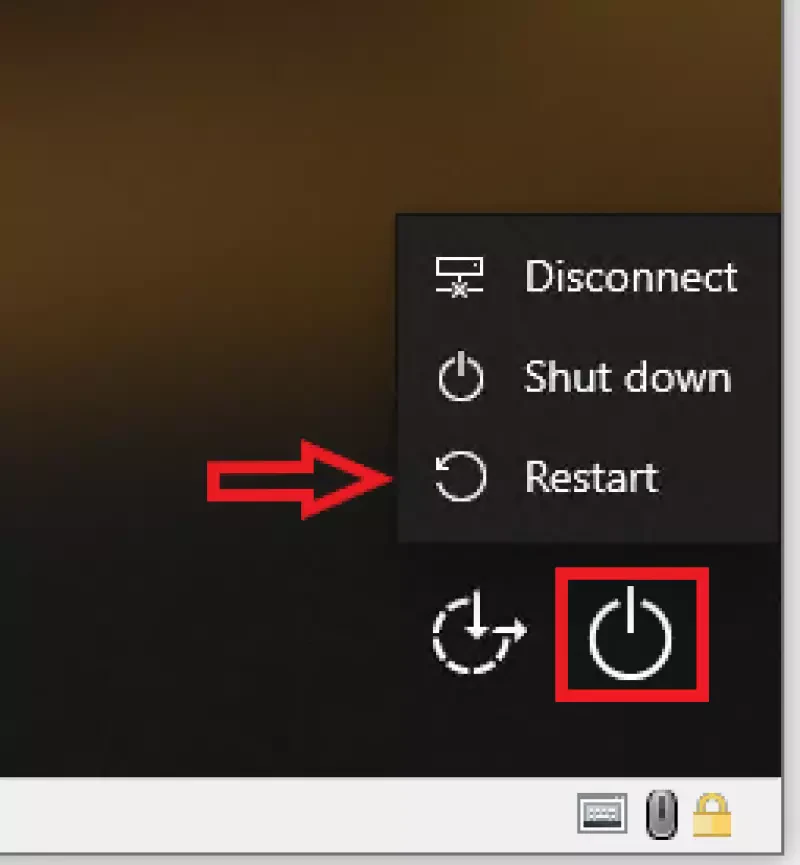
-
Close the installation routine and boot Windows normally. Force a restart into the recovery environment from the login screen: hold SHIFT, click the power symbol (bottom right), select Restart.
-
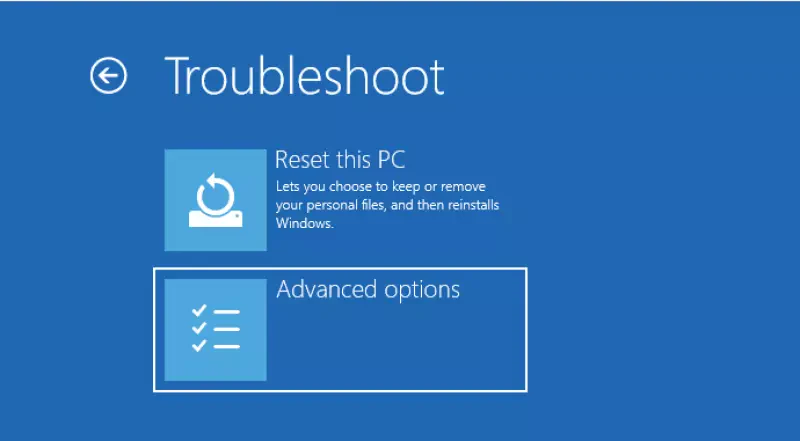
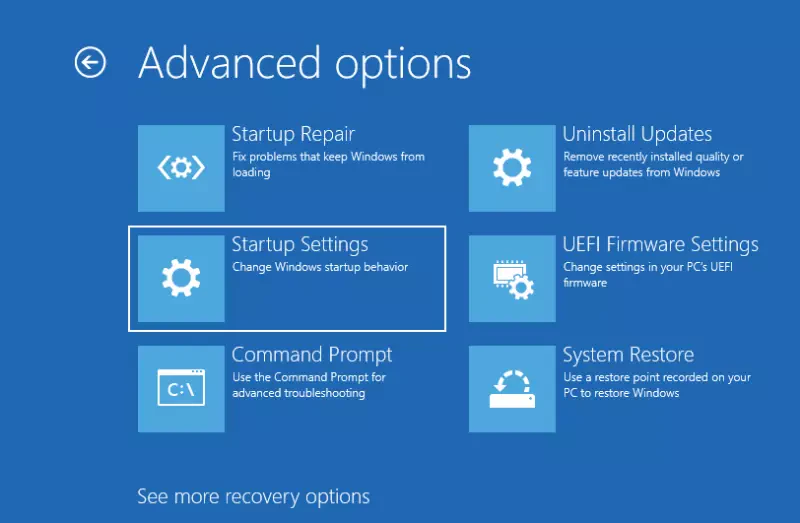
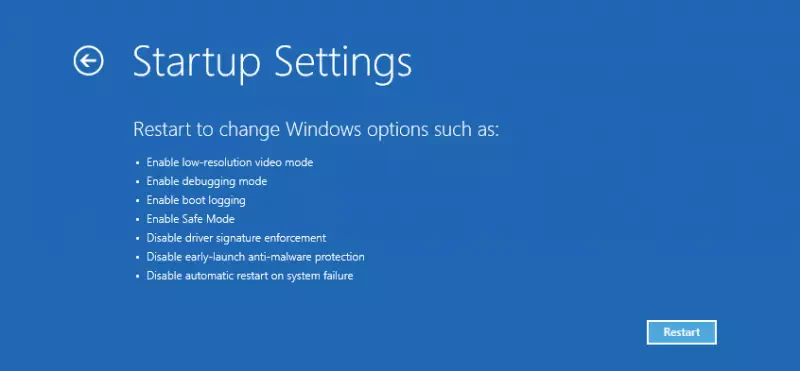
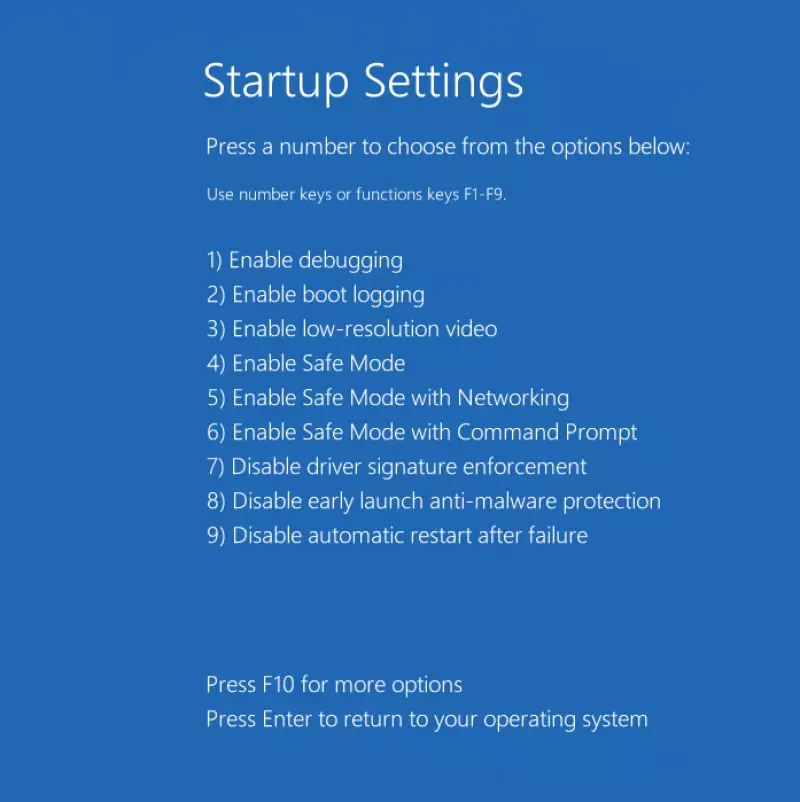
In the recovery menu choose Troubleshoot → Advanced Options → Startup Settings → Restart, then press 6 (safe mode with command prompt).
-
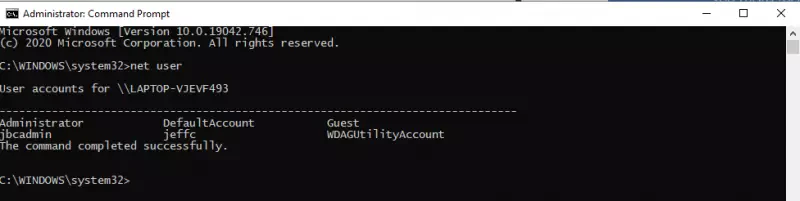
The own password is unknown, but the replaced accessibility tool now works: on the login screen click the accessibility icon (second icon, bottom right) — a command line opens with system privileges.
-
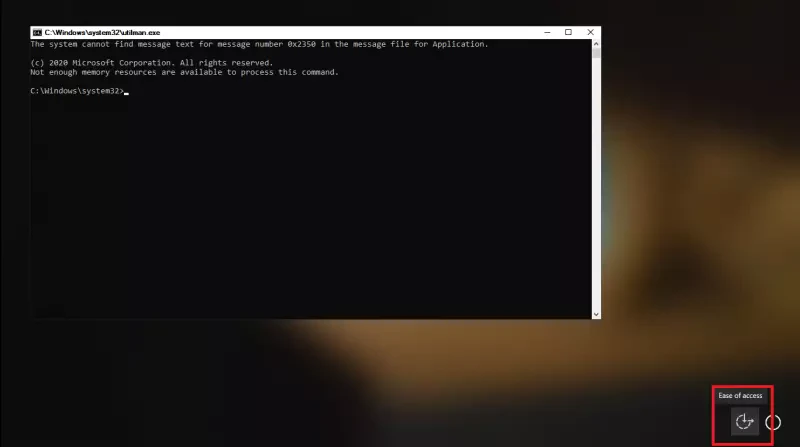
net userlists the local accounts. If the target account is not listed, reactivate the built-in Administrator instead and set a password for it:net user Administrator /active:yes net user Administrator NEWPASSWORD(With adjusted commands this also creates a brand-new admin user.)
-
Reboot and log in as the Administrator with the set password, then change the actual user's password via Control Panel → Users → Other accounts. Reboot again and log in as the actual user.
Cleaning up
Undo the tracks so the door is closed again:
net user administrator /active:no- From an elevated command line:
C:,cd Windows,cd system32,del utilman.exe,copy utilman_old.exe utilman.exe
Security assessment
The procedure works on any Windows 10 machine with physical access — command-line access during setup and unsigned pre-login system binaries are the enabling chain. Preventing it requires both:
- BIOS/UEFI password – stops booting from foreign media.
- Disk encryption (BitLocker) – otherwise the drive can simply be read in another machine.
A Microsoft online account alone does not prevent it; a new local admin can still be created by anyone with the hardware. Upstream fixes would mean blocking the command line in the setup routine and verifying signatures of pre-login system binaries (analogous to SELinux on Linux).
Sources
- https://adamtheautomator.com/reset-windows-10-password-command-prompt/ – did not work, useful background
- https://www.avast.com/c-recover-windows-password#gref – did not work, useful background
- https://www.makeuseof.com/tag/3-ways-to-reset-the-forgotten-windows-administrator-password/ – did not work, useful background
- https://www.sony.com/electronics/support/articles/00123047 – activating a disabled Windows account from the command line
- https://www.microsoft.com/en-us/software-download/windows10ISO – Windows 10 ISO download